Ever wonder how to delete PC games effectively to reclaim precious hard drive space or boost your system's performance? This comprehensive guide for the United States audience will walk you through the essential steps to properly uninstall games from your computer. Whether you are using Windows settings, popular game launchers like Steam or Epic Games, or need to tackle stubborn leftover files, we cover all methods. Learn why a clean uninstallation is crucial and discover tips to keep your PC running smoothly in 2026. This informational resource ensures you have the knowledge to manage your digital library with confidence, helping you declutter and optimize your gaming setup for the best experience. Stay informed and improve your PC's health today.
How do I completely remove a PC game from my computer?
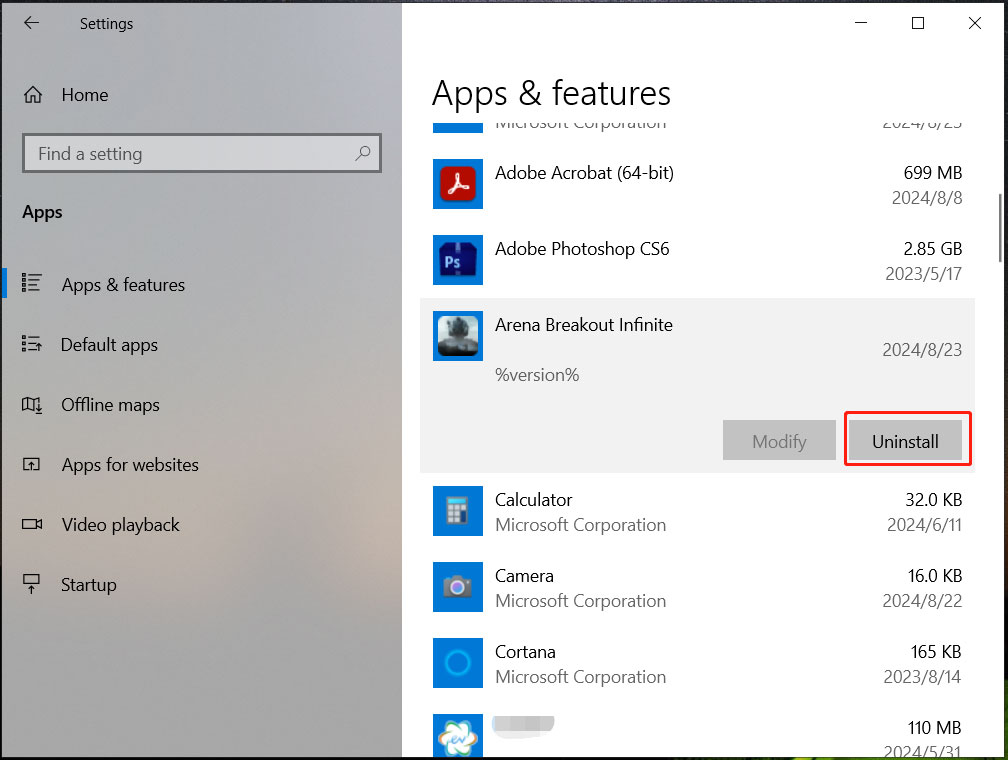
To completely remove a PC game, start with the standard uninstallation via Windows Settings (Apps & features) or the game's dedicated launcher (Steam, Epic Games). After that, search your Program Files and User folders for any remaining game-specific directories and delete them manually for a thorough cleanup, ensuring no residual files remain.
Will uninstalling a game delete my saved progress and data?
Typically, uninstalling a game does not delete your saved game progress. Most games store save files separately, often in your 'Documents' folder, AppData, or utilize cloud saving services. It's always a good idea to back up critical save files before uninstallation if you're concerned about losing your progress permanently.
What is the fastest way to delete multiple PC games at once?
The fastest way to delete multiple PC games depends on their origin. For games installed via a single launcher like Steam, you can often select multiple games for uninstallation within the launcher's interface. For other games, navigating to Windows 'Apps & features' and systematically uninstalling them is generally the quickest approach.
Is it safe to just delete a game folder without uninstalling?
Simply deleting a game folder without proper uninstallation is generally not recommended. This method can leave behind residual files, broken registry entries, and unnecessary system clutter, which may lead to performance issues or conflicts with other software. Always use the official uninstaller for a cleaner removal process.
How can I identify and remove 'ghost' game files that aren't uninstalling properly?
To identify and remove 'ghost' game files, first attempt an uninstallation via Windows or the game launcher. If that fails, check the game's installation directory, often in Program Files. Use disk cleanup tools to scan for residual files and consider using a reputable third-party uninstaller for stubborn programs that leave behind fragmented data or registry entries.
When we talk about how to delete PC games, we are often looking to free up valuable storage space, improve system performance, or simply declutter our digital lives. Properly removing games from your computer ensures no lingering files hog resources. This guide will walk you through the most effective methods to achieve a clean uninstallation in 2026, making your PC experience smoother and more organized for users across the United States. It's about taking control of your gaming library.
Why You Need to Delete PC Games Properly
Deleting games correctly is important for several reasons. First, it frees up significant hard drive space, which is always useful. Second, it can improve your PC's overall performance by removing unused data. Third, a clean uninstall prevents leftover files from causing conflicts or errors in the future, ensuring your system runs optimally. Understanding how to delete PC games effectively is a crucial skill for any PC user.
How to Delete PC Games Using Windows Settings
The most straightforward method to delete PC games involves using Windows built-in features. This approach removes the core application files safely and efficiently. Simply navigate to your system settings to manage installed programs. This process helps maintain a clean and functional operating system.
Uninstalling Games Through Game Launchers
Many PC games today are managed by launchers like Steam, Epic Games, or the Xbox App. These platforms offer their own intuitive methods for uninstallation. Using these launchers ensures the game and its associated data are removed. Learning how to delete PC games from these platforms is essential for most modern gamers.
Manually Deleting Leftover Game Files
Sometimes, a standard uninstall may leave behind residual files or folders. For a truly thorough cleanup, you might need to manually delete these leftovers. This advanced step ensures every trace of the game is gone. Always exercise caution when performing manual file deletions. Knowing how to delete PC games completely means addressing these remnants.
| Method | Description | Typical Use Case |
|---|---|---|
| Windows Settings | Standard uninstallation via Apps & Features. | Most applications and general games. |
| Game Launcher | Uninstall directly from Steam, Epic, Xbox app. | Games installed through specific platforms. |
| Manual Deletion | Removing residual folders after standard uninstall. | Thorough cleanup of stubborn files. |
What Others Are Asking?
How do I completely uninstall a PC game?
To completely uninstall a PC game, first use Windows 'Apps & features' or the game launcher's uninstall option. After the initial uninstall, check common locations like 'Program Files' or 'Documents' for any leftover folders associated with the game. Deleting these manually ensures a thorough removal, helping to reclaim all disk space.
Does uninstalling a game delete saved data?
Uninstalling a game usually does not delete your saved game data. Many games store save files in separate locations, often within your 'Documents' folder or user AppData directories. Cloud saves also protect your progress. It's wise to back up important save files before uninstalling if you plan to reinstall the game later.
How do I delete a game from Steam?
To delete a game from Steam, open your Steam Library, right-click on the game you wish to remove, select 'Manage,' and then choose 'Uninstall.' Confirm your choice, and Steam will remove the game files from your PC. This is a quick and effective way to free up space within the Steam ecosystem.
What is the best way to free up space from old games?
The best way to free up space from old games is a two-step process. First, use the built-in uninstaller via Windows Settings or the game's launcher. Second, manually check for and delete any remaining game folders in common installation and data locations like Program Files or your user folders to ensure a complete cleanup.
Can I delete game files manually?
Yes, you can delete game files manually, but it's generally recommended as a last resort or after a standard uninstallation. Directly deleting game folders without using an uninstaller can leave registry entries or other system files behind, potentially causing minor issues. Always try the official uninstall method first for optimal results.
FAQ About Deleting PC Games
What is deleting PC games?
Deleting PC games is the process of removing game software and its associated files from your computer's storage. It frees up disk space and helps manage your digital game library effectively. This action is crucial for system optimization.
Why should I delete PC games?
You should delete PC games to reclaim hard drive space, improve your computer's performance, and declutter your system. Removing unused games ensures your PC runs smoothly and efficiently, preventing unnecessary slowdowns caused by excessive files.
How do I delete PC games from my computer?
You can delete PC games through Windows 'Apps & features,' using the uninstall option within specific game launchers like Steam, or by manually removing leftover files. Each method offers a clean way to remove games and their data from your system.
Who needs to know how to delete PC games?
Anyone who plays PC games and manages their own computer should know how to delete PC games. This includes casual players, hardcore gamers, and general PC users looking to optimize their system's storage and performance. It's a fundamental PC maintenance skill.
Summary of Key Points on How to Delete PC Games
Effectively managing your PC game library by knowing how to delete PC games is simple yet impactful. Use Windows settings or game launchers for primary uninstallation. For a thorough cleanup, manually check for leftover files. This process frees up space, enhances performance, and keeps your system tidy. Empower yourself with these easy steps to maintain a healthy gaming PC in 2026. Taking action today ensures a smoother, more enjoyable digital experience.
Effortlessly delete PC games, reclaim storage, boost performance, comprehensive uninstallation guide, clean system maintenance, manage game libraries effectively, steps for Windows and launchers, remove stubborn game files.
35


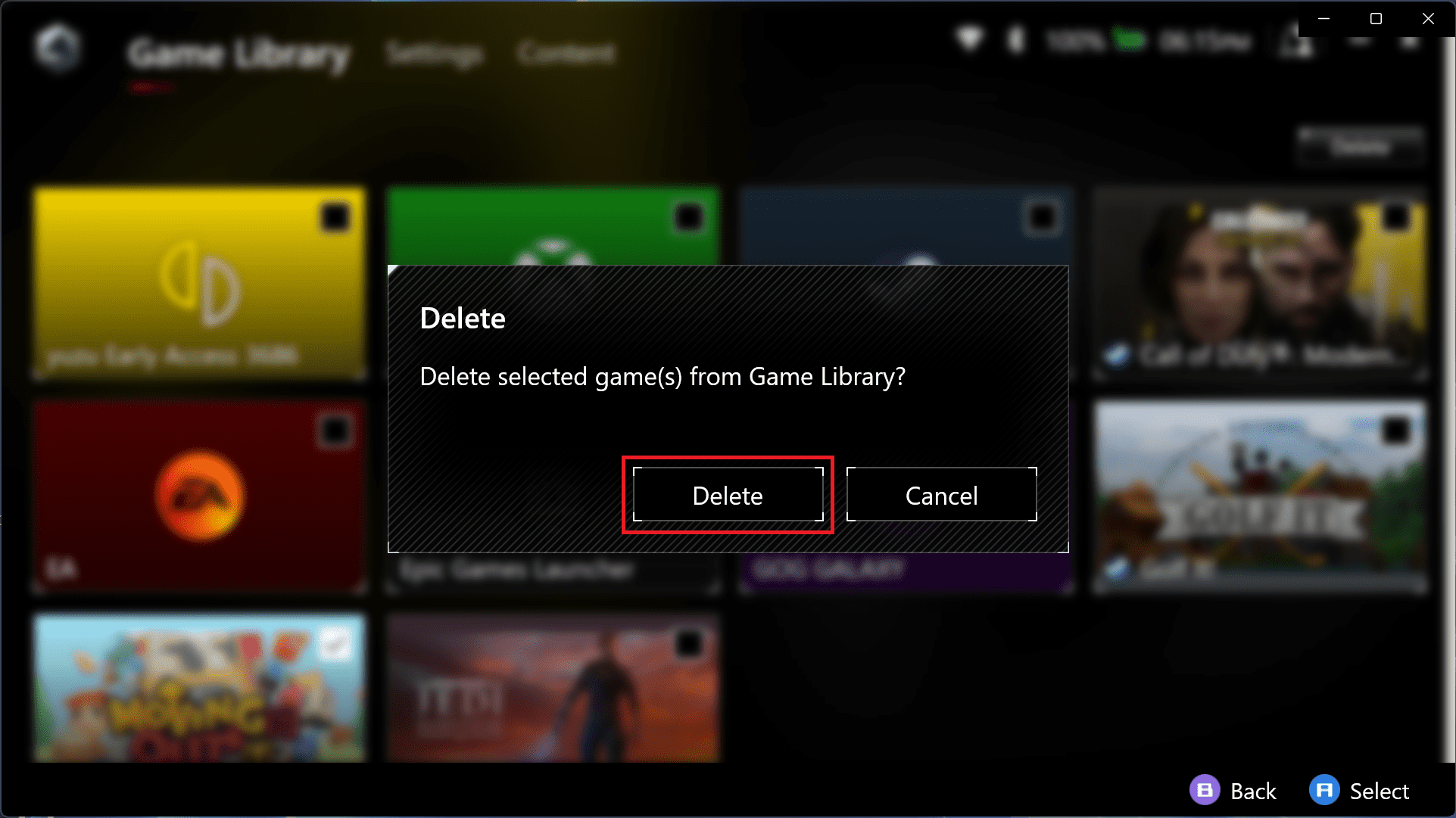

How To Uninstall PC Games From Windows Full Guide YouTube . How To Delete Uninstall Or Remove A Game From Your Computer YouTube . Top 10 Most Anticipated Games Of 2026 What To Watch Out For GAMES IN 2026 . How To Delete Games And Apps From ASUS ROG Ally Technipages How To Delete Apps And Games From ASUS ROG Ally 181538 . How To Completely Delete Game From Steam In Windows YouTube


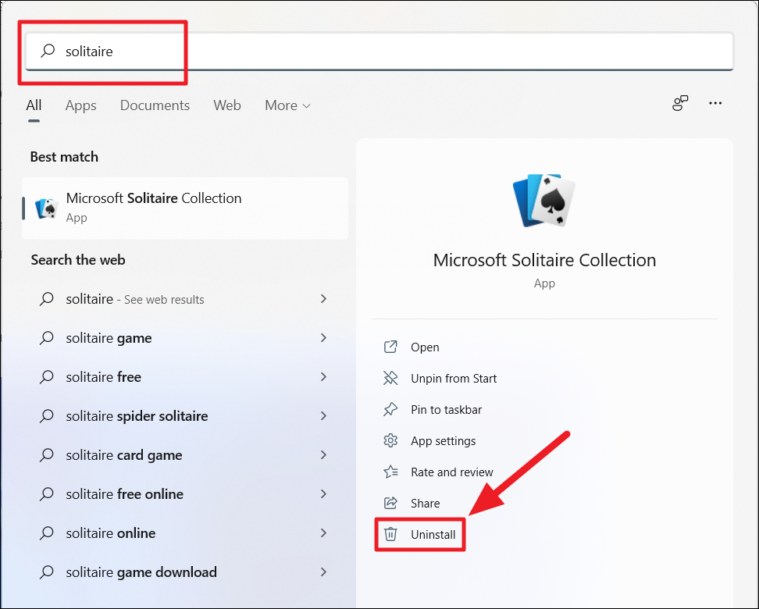
How To Uninstall Delete Games All At Once On STEAM Easy Tutorial . How To Delete Games On Steam YouTube . How To Uninstall Games On Your PC UK Uninstall Games Square . How To Remove GAME From Library Epic Games How To Delete An Epic . How To Uninstall Microsoft Store Games How To Uninstall Microsoft Store Games Image 1 1 759x609


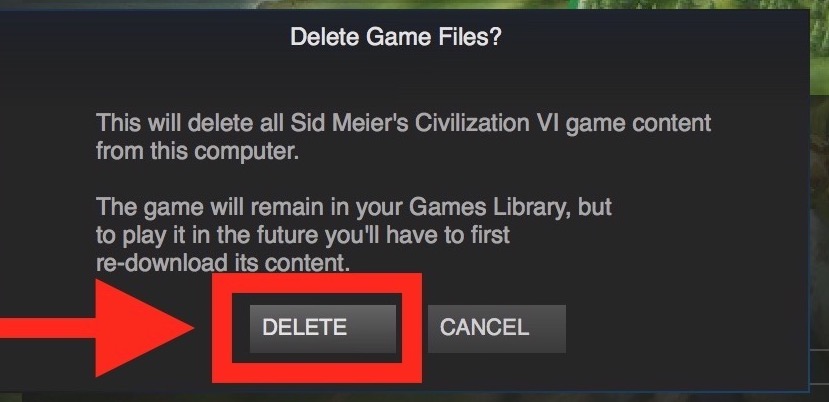

How To Delete All Game Data On Steam BEST Way YouTube . Uninstall Battlenet App On Windows 10 Youtube . TOP 40 BIGGEST NEW Games Coming In 2026 With Crazy NEXT GEN 4K Graphics . How To Uninstall Steam Games On Mac And Windows Linux Too Howto Delete Steam Games . TOP 50 BIGGEST NEW Games Coming In 2026 With Crazy NEXT GEN 4K Graphics


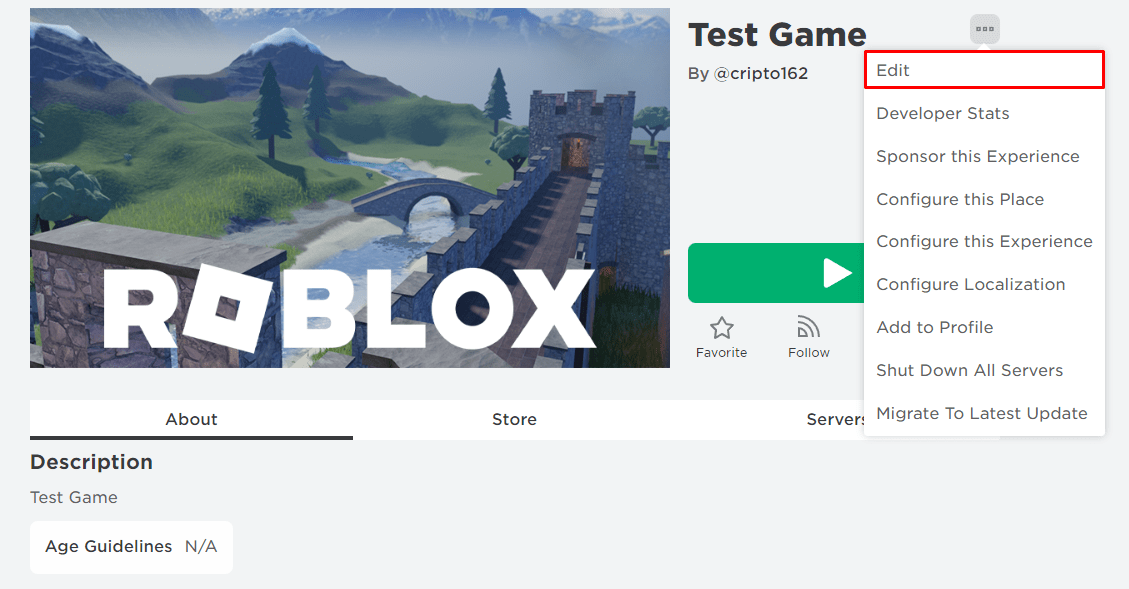

How To Delete Games From PS5 Uninstall Guide For Beginners YouTube . TOP 21 NEW Upcoming Games Of 2026 YouTube . All Video Games Releasing In 2026 2026 Video Game Release Dates Post Feature Image . How To Delete A ROBLOX Experience Game In 2026 Roblox Den Image 8226d426bb . OS 60 GAMES MAIS ESPERADOS PARA 2025 2026 YouTube



Xbox Game Pass In 2026 The Full List Of Everything Announced So Far Xbox Game Pass In 2026 The Full List Of Everything Announced So Far.large . Ghost Of Yotei New Game Plus Mode Explained GamesRadar . How To Reduce Lag Without Sacrificing Graphics No Witchcraft Involved New Games 2025 2026 . How To Delete Projects In Photoshop Easiest Way 2026 Guide YouTube . TOP 10 BEST NEW Upcoming Games Of 2026 YouTube




My Current Steam Wishlist 2025 2026 New Games YouTube . TOP 10 NEW Upcoming Games Of 2026 Beyond YouTube . NEW UPCOMING GAMES 2026 Trailer Best New Game Trailers YouTube . You Need These 7 Board Games From The UK Games Expo 2025 In Your . EFootball 2026 FIFPlay Efootball 2026 Leagues


Xbox Game Pass Will Break Records In 2026 With 75 Day One Launch Games Xbox Game Pass Rompera Records En 2026 Con 75 Juegos De Lanzamiento Dia Uno 1 . How To Uninstall Games On Windows 11 10 6 Options To Choose How To Uninstall Games 4 . How To Reinstall Games On PS5 Without Losing Data 2026 Delete And Reinstall A Game On Ps5 768x432 . How To Delete Steam Games Quick Easy Guide V4 460px Delete Steam Games Step 4 . How To Reset Game Progress Delete Saved Data On Xbox Series X S Fast